Once you've finished editing your design and details, you can opt to customize the email template that is sent to your recipients. To do so, you will need to upgrade your event to the Paperless Post Plus feature bundle for 200 Coins.
You can do this by clicking the Customize Email at the top of your Add Recipients/Guests page:
From there, select Custom:
Once you select this option, you can upload your own logo, change the Email Style and colors, include an additional message for all guests, and choose whether the Card or envelope Image is shown in the email:
You can click Email Blocks at the top of the page to toggle on/off the email blocks that you would like to use:
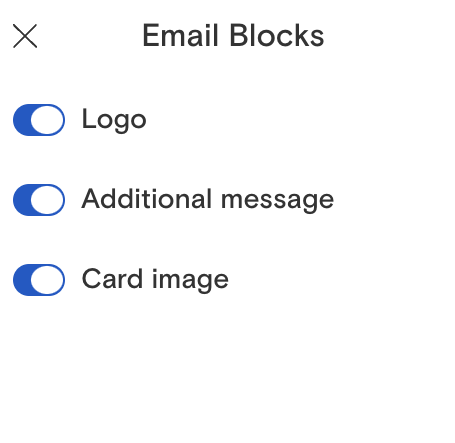
Blue indicates that the selected block is turned on, and grey indicates that it is turned off.
If you're uploading your own logo, you can use any PNG, JPG or TIFF file under 20MB, though we recommend sizing your image to 300x300 pixels for the best display.
Please note that this custom template is only available for invitations sent via email.
To switch back to our free email template, you can select "Classic" from the toggle at the top. This will revert your selection to our default email template, which is not able to be customized. Please note, if you switch back to Classic after making edits, your custom options will be discarded and you will have to start over if you wish to turn the option back on.
For Paperless Pro subscribers: The Custom Email option and all features of Paperless Post Plus are included in your subscription for no additional cost.